Connect as yourself with OAuth, or as the whole workspace with an API key.
The MCP server accepts two kinds of credentials. The one you pick decides what the assistant can see.
OAuth
API key
Scope
The person who approved it
The whole workspace
Identity
Tied to a NeetoKB user
Tied to nobody
Set up by
Signing in to NeetoKB from the assistant
Pasting a key into a config file
Used by
Every client except Antigravity
Every client except Claude and ChatGPT
Reaches several workspaces
Yes, tick the extra ones while approving
No, one key is one workspace
Revoked by
Removing the connector
Revoking the key in workspace settings
In Claude Code, Codex, Cursor, Gemini CLI, VS Code, and Windsurf, leave the key out of the config to sign in with OAuth. Put the key in to use the API key. Both expose the same tools.
The assistant acts as the person who approved the connection. Lists and searches show only what that person can see. An article they cannot open is refused. Articles in categories they cannot see stay hidden.Use OAuth when a person drives the assistant. For the steps, see Connect agent.
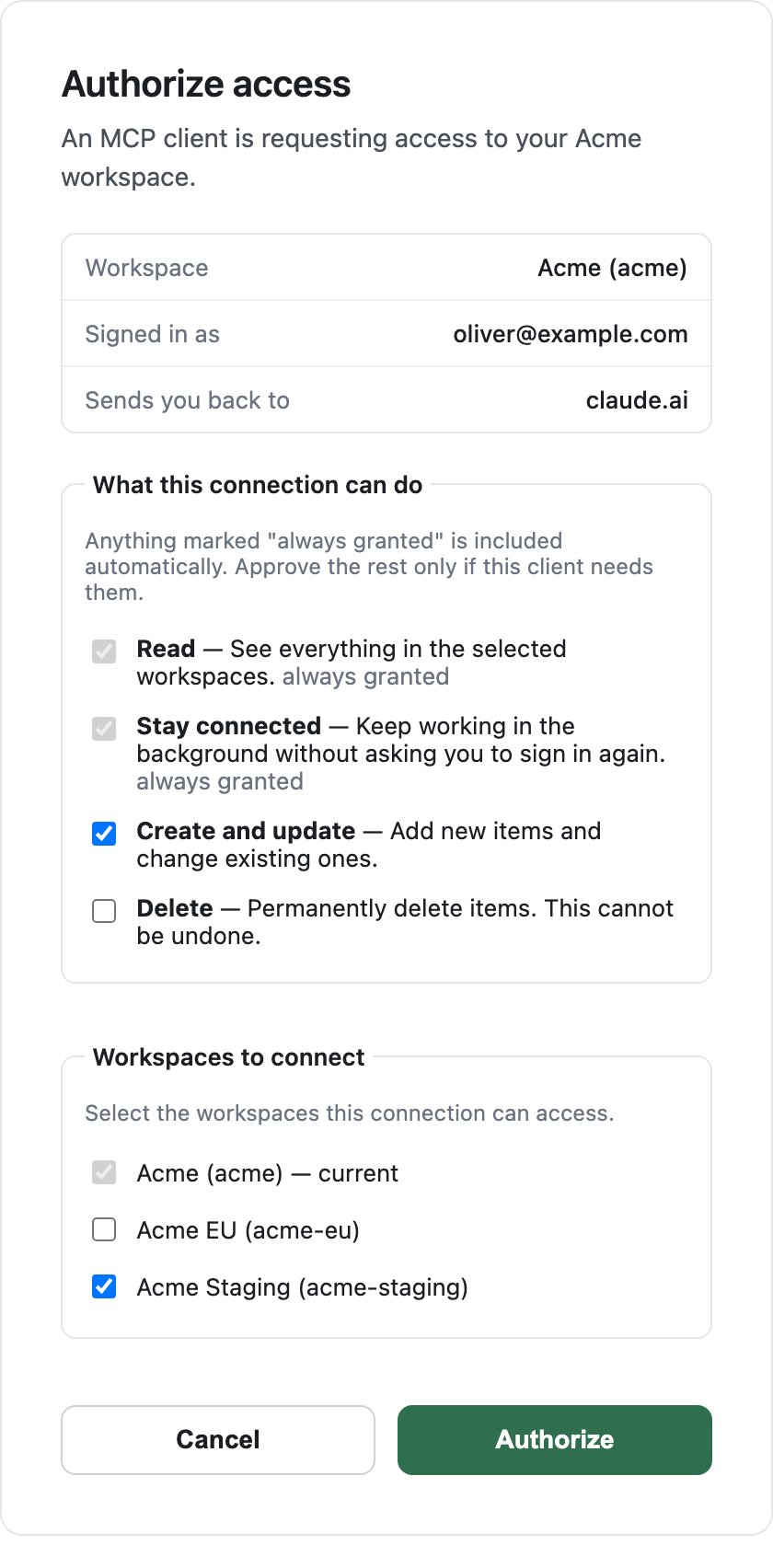
The approval screen, with the scope picker and the additional workspaces list.
If you leave a scope unticked, a tool that needs it is refused with a message that names the scope. For example, a read-only connection can search and read articles but cannot create, publish, or delete anything.One OAuth connection can reach several workspaces. Name the workspace in your prompt, or ask the assistant to list the workspaces it can reach. Every tool takes an optional workspace argument for this.
An API key is not tied to a person. Every tool call reaches the whole workspace, and role checks do not run. Use a key for automation that must see every article, including drafts and private categories. Do not use one on a machine where the person should see only their own articles.The key is the same one the REST API uses. Put it in the server entry of the assistant’s config file:
A key belongs to one workspace. To reach two workspaces, add the server twice, with a different key and a different server name in each entry.
An API key gives access to every article in the workspace. Treat it like a password: keep it out of shared config files and commits, and revoke it if it leaks.
Browser approval, or an Authorization: Bearer header in the assistant’s config file.
{"docsConfig":{"theme":"mint","$schema":"https://mintlify.com/docs.json","name":"NeetoKB Docs","description":"Developer docs for NeetoKB: the REST API, the CLI and the MCP server.","colors":{"primary":"#10B981","light":"#34D399","dark":"#059669"},"logo":"https://mintcdn.com/neetokb-apis/TvT839MVKEca5rat/assets/logo.svg?fit=max\u0026auto=format\u0026n=TvT839MVKEca5rat\u0026q=85\u0026s=c43a7be461e49afbcc866730e9a2b650","favicon":"https://mintcdn.com/neetokb-apis/XUNeApzZj0GB0pou/assets/favicon.png?fit=max\u0026auto=format\u0026n=XUNeApzZj0GB0pou\u0026q=85\u0026s=bfab098569548a0719f038e2d6fb9854","api":{"params":{"expanded":"all"},"playground":{"display":"interactive","proxy":true},"examples":{"defaults":"all","languages":["curl","javascript","python"]}},"appearance":{"default":"light","strict":true},"navbar":{"links":[{"href":"https://www.neeto.com/neetokb/blog","label":"Blog"},{"href":"https://help.neetokb.com/","label":"Help center"},{"href":"https://neetokb.com/","label":"NeetoKB"}]},"footer":{"socials":{"x":"https://x.com/neetohq","linkedin":"https://www.linkedin.com/company/neeto","youtube":"https://www.youtube.com/channel/UCoQ3Kv2JdZ51WZJ3QFFcI9g","slack":"https://neeto.com/community"}},"styling":{"eyebrows":"section","codeblocks":"system","latex":false},"navigation":{"pages":[]}},"deployment":{"deploymentMetadataValue":{"subdomain":"neetokb-apis","hasAudioNarration":false,"actualSubdomain":"neetokb-apis","customDomains":["apidocs.neetokb.com"],"gitSource":{"type":"github","owner":"neetokbapis","repo":"neeto-kb-api","deployBranch":"main","contentDirectory":"","isPrivate":true,"mountPath":"","label":""},"chroma":{"liveDeploymentHistoryId":"6ae41207d89f1440b97e1101","collectionId":"1ceb37e4-808f-469b-a5af-d612c6ef2b2b","schemaVersion":"v3","latestBuiltDeploymentHistoryId":"6ae41207d89f1440b97e1101"},"entitlements":{},"buildId":"6ae41207d89f1440b97e1101","clientVersion":"0.0.4043","searchFilterCounts":[{"language":"default","tag":"API","count":106},{"language":"default","tag":"CLI","count":25},{"language":"default","tag":"Articles","count":22},{"language":"default","tag":"Getting started","count":21},{"language":"default","tag":"Commands","count":18},{"language":"default","tag":"API v1 (deprecated)","count":12},{"language":"default","tag":"Themes","count":11},{"language":"default","tag":"MCP","count":8},{"language":"default","tag":"Reports","count":7},{"language":"default","tag":"Categories","count":6}]},"assistantConfig":{},"basePath":"","hasChatPermissions":false,"hasWebMcpPermissions":false,"toggles":[{"name":"kill-isr","enabled":true,"variant":{"name":"disabled","enabled":false,"feature_enabled":true},"impressionData":false},{"name":"agent-mintlify-slack","enabled":true,"variant":{"name":"disabled","enabled":false,"feature_enabled":true},"impressionData":false},{"name":"agent-integrations-settings","enabled":true,"variant":{"name":"disabled","enabled":false,"feature_enabled":true},"impressionData":false},{"name":"automations-pr-grouping","enabled":true,"variant":{"name":"disabled","enabled":false,"feature_enabled":true},"impressionData":false},{"name":"custom-prefix","enabled":true,"variant":{"name":"disabled","enabled":false,"feature_enabled":true},"impressionData":false},{"name":"analytics-v7","enabled":true,"variant":{"name":"disabled","enabled":false,"feature_enabled":true},"impressionData":false},{"name":"user-flows-analytics","enabled":true,"variant":{"name":"disabled","enabled":false,"feature_enabled":true},"impressionData":false},{"name":"no-publish-flow","enabled":true,"variant":{"name":"disabled","enabled":false,"feature_enabled":true},"impressionData":false},{"name":"workos-onboarding","enabled":true,"variant":{"name":"disabled","enabled":false,"feature_enabled":true},"impressionData":false},{"name":"llms-txt-v2","enabled":true,"variant":{"name":"disabled","enabled":false,"feature_enabled":true},"impressionData":false},{"name":"snapshot-serving-live","enabled":true,"variant":{"name":"disabled","enabled":false,"feature_enabled":true},"impressionData":false},{"name":"stripTemperatureMiddleware","enabled":true,"variant":{"name":"disabled","enabled":false,"feature_enabled":true},"impressionData":false},{"name":"support-platform-pylon-zendesk","enabled":true,"variant":{"name":"disabled","enabled":false,"feature_enabled":true},"impressionData":false},{"name":"snapshot-serving","enabled":true,"variant":{"name":"disabled","enabled":false,"feature_enabled":true},"impressionData":false},{"name":"instant-rollback","enabled":true,"variant":{"name":"disabled","enabled":false,"feature_enabled":true},"impressionData":false},{"name":"granular-notifications-server","enabled":true,"variant":{"name":"disabled","enabled":false,"feature_enabled":true},"impressionData":false},{"name":"granular-notifications","enabled":true,"variant":{"name":"disabled","enabled":false,"feature_enabled":true},"impressionData":false},{"name":"automations-fable","enabled":true,"variant":{"name":"disabled","enabled":false,"feature_enabled":true},"impressionData":false},{"name":"fixed-ai-action-pricing","enabled":true,"variant":{"name":"disabled","enabled":false,"feature_enabled":true},"impressionData":false},{"name":"automation-resolve-merge-conflict","enabled":true,"variant":{"name":"disabled","enabled":false,"feature_enabled":true},"impressionData":false},{"name":"scoped-publishing","enabled":true,"variant":{"name":"disabled","enabled":false,"feature_enabled":true},"impressionData":false},{"name":"mintql","enabled":true,"variant":{"name":"disabled","enabled":false,"feature_enabled":true},"impressionData":false},{"name":"page-level-analytics","enabled":true,"variant":{"name":"disabled","enabled":false,"feature_enabled":true},"impressionData":false},{"name":"editor-version-history-v2","enabled":true,"variant":{"name":"disabled","enabled":false,"feature_enabled":true},"impressionData":false},{"name":"billing-page-v2","enabled":true,"variant":{"name":"disabled","enabled":false,"feature_enabled":true},"impressionData":false},{"name":"full-page-search","enabled":true,"variant":{"name":"disabled","enabled":false,"feature_enabled":true},"impressionData":false},{"name":"workspace-projects","enabled":true,"variant":{"name":"disabled","enabled":false,"feature_enabled":true},"impressionData":false},{"name":"assistant-v5","enabled":true,"variant":{"name":"disabled","enabled":false,"feature_enabled":true},"impressionData":false},{"name":"byok-sep-25","enabled":true,"variant":{"name":"disabled","enabled":false,"feature_enabled":true},"impressionData":false},{"name":"fork-pr-previews","enabled":true,"variant":{"name":"disabled","enabled":false,"feature_enabled":true},"impressionData":false},{"name":"revalidation-jwt","enabled":true,"variant":{"name":"disabled","enabled":false,"feature_enabled":true},"impressionData":false},{"name":"vite-origin","enabled":true,"variant":{"name":"disabled","enabled":false,"feature_enabled":true},"impressionData":false},{"name":"billing-updated-9-15","enabled":true,"variant":{"name":"disabled","enabled":false,"feature_enabled":true},"impressionData":false},{"name":"workos-sso-scim","enabled":true,"variant":{"name":"disabled","enabled":false,"feature_enabled":true},"impressionData":false},{"name":"hobby-abuse-scan","enabled":true,"variant":{"name":"disabled","enabled":false,"feature_enabled":true},"impressionData":false},{"name":"dashboard-inbox","enabled":true,"variant":{"name":"disabled","enabled":false,"feature_enabled":true},"impressionData":false},{"name":"workos-signup","enabled":true,"variant":{"name":"disabled","enabled":false,"feature_enabled":true},"impressionData":false},{"name":"turbopuffer-dual-write","enabled":true,"variant":{"name":"disabled","enabled":false,"feature_enabled":true},"impressionData":false},{"name":"workos-enabled","enabled":true,"variant":{"name":"disabled","enabled":false,"feature_enabled":true},"impressionData":false},{"name":"approve-review-flow","enabled":true,"variant":{"name":"disabled","enabled":false,"feature_enabled":true},"impressionData":false}],"googleFontsInlined":false},"customCss":[{"filePath":"theme.css","content":":root{--primary-green:#0da874;--white:#ffffff;--light-gray:#eeeeee;--dark-gray:#1f2937;--text-white:rgb(255, 255, 255);--text-light:rgb(238, 238, 238)}#navbar-transition,[data-nav=true]{background-color:var(--primary-green)!important}.nav-logo{filter:brightness(0) invert(1)!important;height:20px!important;width:auto!important;max-width:none!important}#navbar a,#navbar-transition a,.navbar-link,[data-nav=true] a{color:var(--text-white)!important}#navbar a:hover,#navbar-transition a:hover,.navbar-link:hover,[data-nav=true] a:hover{color:var(--text-light)!important}#navbar .text-sm,#navbar .text-xs,#navbar button,#navbar div,#navbar p,#navbar span{color:var(--white)!important}#navbar .bg-gray-300,#navbar .bg-gray-400,#navbar .bg-gray-500,#navbar .bg-gray-600,[data-headlessui-state=open] [id*=headlessui-dialog-panel]{background-color:var(--white)!important}[data-headlessui-state=open] [id*=headlessui-dialog-panel] .dark\\:text-gray-400,[data-headlessui-state=open] [id*=headlessui-dialog-panel] .navbar-link a,[data-headlessui-state=open] [id*=headlessui-dialog-panel] .text-gray-600{color:var(--dark-gray)!important}#search-bar-entry .text-sm,#search-bar-entry .text-xs,#search-bar-entry button,#search-bar-entry div,#search-bar-entry img,#search-bar-entry p,#search-bar-entry span,#search-bar-entry svg,[data-headlessui-state=open] [id*=headlessui-dialog-panel] .dark\\:hover\\:text-gray-300:hover,[data-headlessui-state=open] [id*=headlessui-dialog-panel] .hover\\:text-gray-900:hover,[data-headlessui-state=open] [id*=headlessui-dialog-panel] .navbar-link a:hover{color:var(--primary-green)!important}"}],"page":{"pagePath":"mcp/authentication","slug":"/mcp/authentication","pageMetadata":{"title":"Authentication","description":"Connect as yourself with OAuth, or as the whole workspace with an API key.","href":"/mcp/authentication"},"description":{"compiledSource":"\"use strict\";\nconst {jsx: _jsx} = arguments[0];\nconst {useMDXComponents: _provideComponents} = arguments[0];\nfunction _createMdxContent(props) {\n const _components = {\n p: \"p\",\n ..._provideComponents(),\n ...props.components\n };\n return _jsx(_components.p, {\n children: \"Connect as yourself with OAuth, or as the whole workspace with an API key.\"\n });\n}\nfunction MDXContent(props = {}) {\n const {wrapper: MDXLayout} = {\n ..._provideComponents(),\n ...props.components\n };\n return MDXLayout ? _jsx(MDXLayout, {\n ...props,\n children: _jsx(_createMdxContent, {\n ...props\n })\n }) : _createMdxContent(props);\n}\nreturn {\n default: MDXContent\n};\n","frontmatter":{},"scope":{}},"pageType":"default","mdx":{"mdxSource":{"compiledSource":"\"use strict\";const{Fragment:_Fragment,jsx:_jsx,jsxs:_jsxs}=arguments[0];const{useMDXComponents:_provideComponents}=arguments[0];function _createMdxContent(props){const _components={a:`a`,code:`code`,p:`p`,pre:`pre`,span:`span`,strong:`strong`,tbody:`tbody`,td:`td`,th:`th`,thead:`thead`,tr:`tr`,..._provideComponents(),...props.components},{CodeBlock,Frame,Heading,OptimizedImage,Table,Tip,Warning}=_components;if(!CodeBlock)_missingMdxReference(`CodeBlock`,true);if(!Frame)_missingMdxReference(`Frame`,true);if(!Heading)_missingMdxReference(`Heading`,true);if(!OptimizedImage)_missingMdxReference(`OptimizedImage`,true);if(!Table)_missingMdxReference(`Table`,true);if(!Tip)_missingMdxReference(`Tip`,true);if(!Warning)_missingMdxReference(`Warning`,true);return _jsxs(_Fragment,{children:[_jsxs(_components.p,{children:[`The MCP server accepts two kinds of credentials. The one you pick decides `,_jsx(_components.strong,{children:`what the assistant can see`}),`.`]}),`\n`,_jsxs(Table,{children:[_jsx(_components.thead,{children:_jsxs(_components.tr,{children:[_jsx(_components.th,{}),_jsx(_components.th,{children:`OAuth`}),_jsx(_components.th,{children:`API key`})]})}),_jsxs(_components.tbody,{children:[_jsxs(_components.tr,{children:[_jsx(_components.td,{children:`Scope`}),_jsx(_components.td,{children:`The person who approved it`}),_jsx(_components.td,{children:`The whole workspace`})]}),_jsxs(_components.tr,{children:[_jsx(_components.td,{children:`Identity`}),_jsx(_components.td,{children:`Tied to a NeetoKB user`}),_jsx(_components.td,{children:`Tied to nobody`})]}),_jsxs(_components.tr,{children:[_jsx(_components.td,{children:`Set up by`}),_jsx(_components.td,{children:`Signing in to NeetoKB from the assistant`}),_jsx(_components.td,{children:`Pasting a key into a config file`})]}),_jsxs(_components.tr,{children:[_jsx(_components.td,{children:`Used by`}),_jsx(_components.td,{children:`Every client except Antigravity`}),_jsx(_components.td,{children:`Every client except Claude and ChatGPT`})]}),_jsxs(_components.tr,{children:[_jsx(_components.td,{children:`Reaches several workspaces`}),_jsx(_components.td,{children:`Yes, tick the extra ones while approving`}),_jsx(_components.td,{children:`No, one key is one workspace`})]}),_jsxs(_components.tr,{children:[_jsx(_components.td,{children:`Revoked by`}),_jsx(_components.td,{children:`Removing the connector`}),_jsx(_components.td,{children:`Revoking the key in workspace settings`})]})]})]}),`\n`,_jsxs(_components.p,{children:[`In Claude Code, Codex, Cursor, Gemini CLI, VS Code, and Windsurf, leave the key out of the config to sign in with OAuth. Put the key in to use the API key. Both expose the same `,_jsx(_components.a,{href:`/mcp/tools`,children:`tools`}),`.`]}),`\n`,_jsx(Heading,{level:`2`,id:`oauth-scoped-to-you`,children:`OAuth, scoped to you`}),`\n`,_jsx(_components.p,{children:`The assistant acts as the person who approved the connection. Lists and searches show only what that person can see. An article they cannot open is refused. Articles in categories they cannot see stay hidden.`}),`\n`,_jsxs(_components.p,{children:[`Use OAuth when a person drives the assistant. For the steps, see `,_jsx(_components.a,{href:`/mcp/connect#sign-in-with-your-neetokb-account`,children:`Connect agent`}),`.`]}),`\n`,_jsxs(Table,{children:[_jsx(_components.thead,{children:_jsxs(_components.tr,{children:[_jsx(_components.th,{children:`Detail`}),_jsx(_components.th,{children:`Value`})]})}),_jsxs(_components.tbody,{children:[_jsxs(_components.tr,{children:[_jsx(_components.td,{children:`Metadata`}),_jsx(_components.td,{children:_jsx(_components.code,{children:`https://connect.neetokb.com/.well-known/oauth-authorization-server`})})]}),_jsxs(_components.tr,{children:[_jsx(_components.td,{children:`Grant types`}),_jsxs(_components.td,{children:[_jsx(_components.code,{children:`authorization_code`}),` and `,_jsx(_components.code,{children:`refresh_token`}),`, with PKCE (`,_jsx(_components.code,{children:`S256`}),`) required`]})]}),_jsxs(_components.tr,{children:[_jsx(_components.td,{children:`Scopes`}),_jsxs(_components.td,{children:[_jsx(_components.code,{children:`read`}),`, `,_jsx(_components.code,{children:`write`}),`, `,_jsx(_components.code,{children:`delete`}),`, `,_jsx(_components.code,{children:`offline_access`})]})]}),_jsxs(_components.tr,{children:[_jsx(_components.td,{children:`Client registration`}),_jsxs(_components.td,{children:[`Dynamic, per `,_jsx(_components.a,{href:`https://datatracker.ietf.org/doc/html/rfc7591`,children:`RFC 7591`}),`, at `,_jsx(_components.code,{children:`https://connect.neetokb.com/mcp/oauth/register`}),`. Loopback redirect URIs are accepted.`]})]}),_jsxs(_components.tr,{children:[_jsx(_components.td,{children:`Refresh`}),_jsx(_components.td,{children:`Refresh tokens are issued, so you stay signed in`})]}),_jsxs(_components.tr,{children:[_jsx(_components.td,{children:`Revoke`}),_jsx(_components.td,{children:`Remove the connector from your assistant`})]})]})]}),`\n`,_jsx(Heading,{level:`3`,id:`what-you-approve`,children:`What you approve`}),`\n`,_jsxs(Table,{children:[_jsx(_components.thead,{children:_jsxs(_components.tr,{children:[_jsx(_components.th,{children:`Scope`}),_jsx(_components.th,{children:`Shown as`}),_jsx(_components.th,{children:`What it means`}),_jsx(_components.th,{children:`Always granted`})]})}),_jsxs(_components.tbody,{children:[_jsxs(_components.tr,{children:[_jsx(_components.td,{children:_jsx(_components.code,{children:`read`})}),_jsx(_components.td,{children:_jsx(_components.strong,{children:`Read`})}),_jsx(_components.td,{children:`See everything in the connected workspaces.`}),_jsx(_components.td,{children:`Yes`})]}),_jsxs(_components.tr,{children:[_jsx(_components.td,{children:_jsx(_components.code,{children:`offline_access`})}),_jsx(_components.td,{children:_jsx(_components.strong,{children:`Stay connected`})}),_jsx(_components.td,{children:`Keep working without asking you to sign in again.`}),_jsx(_components.td,{children:`Yes`})]}),_jsxs(_components.tr,{children:[_jsx(_components.td,{children:_jsx(_components.code,{children:`write`})}),_jsx(_components.td,{children:_jsx(_components.strong,{children:`Create and update`})}),_jsx(_components.td,{children:`Add new items and change existing ones.`}),_jsx(_components.td,{children:`No`})]}),_jsxs(_components.tr,{children:[_jsx(_components.td,{children:_jsx(_components.code,{children:`delete`})}),_jsx(_components.td,{children:_jsx(_components.strong,{children:`Delete`})}),_jsx(_components.td,{children:`Permanently delete items. This cannot be undone.`}),_jsx(_components.td,{children:`No`})]})]})]}),`\n`,_jsx(Frame,{caption:`The approval screen, with the scope picker and the additional workspaces list.`,children:_jsx(OptimizedImage,{src:`https://mintcdn.com/neetokb-apis/0-J8iDlYvWRrHI6q/assets/mcp/oauth-authorize.png?fit=max\u0026auto=format\u0026n=0-J8iDlYvWRrHI6q\u0026q=85\u0026s=153e12ac8e9653df7dfe8a7219b2ec01`,alt:`NeetoKB 'Authorize access' screen showing the workspace and signed-in email, a 'What this connection can do' list with Read and Stay connected always granted and Create and update and Delete as tickable boxes, a 'Workspaces to connect' list, and Cancel and Authorize buttons`,\"data-og-width\":`840`,width:`840`,\"data-og-height\":`1704`,height:`1704`,\"data-path\":`assets/mcp/oauth-authorize.png`,\"data-optimize\":`true`,\"data-opv\":`3`,srcset:`https://mintcdn.com/neetokb-apis/0-J8iDlYvWRrHI6q/assets/mcp/oauth-authorize.png?w=280\u0026fit=max\u0026auto=format\u0026n=0-J8iDlYvWRrHI6q\u0026q=85\u0026s=f9998d5171cc2e1705b77d58fb7d1b1a 280w, https://mintcdn.com/neetokb-apis/0-J8iDlYvWRrHI6q/assets/mcp/oauth-authorize.png?w=560\u0026fit=max\u0026auto=format\u0026n=0-J8iDlYvWRrHI6q\u0026q=85\u0026s=3306fddbcc77ccba2541dc6ebdac67bb 560w, https://mintcdn.com/neetokb-apis/0-J8iDlYvWRrHI6q/assets/mcp/oauth-authorize.png?w=840\u0026fit=max\u0026auto=format\u0026n=0-J8iDlYvWRrHI6q\u0026q=85\u0026s=53017cfb702003398479f3711bf966de 840w, https://mintcdn.com/neetokb-apis/0-J8iDlYvWRrHI6q/assets/mcp/oauth-authorize.png?w=1100\u0026fit=max\u0026auto=format\u0026n=0-J8iDlYvWRrHI6q\u0026q=85\u0026s=57336f10ad1b2271596a4bee1b8e7ed8 1100w, https://mintcdn.com/neetokb-apis/0-J8iDlYvWRrHI6q/assets/mcp/oauth-authorize.png?w=1650\u0026fit=max\u0026auto=format\u0026n=0-J8iDlYvWRrHI6q\u0026q=85\u0026s=135b77d292a76e36f0067ab0db41cb43 1650w, https://mintcdn.com/neetokb-apis/0-J8iDlYvWRrHI6q/assets/mcp/oauth-authorize.png?w=2500\u0026fit=max\u0026auto=format\u0026n=0-J8iDlYvWRrHI6q\u0026q=85\u0026s=35b3ad30016eba6f43667cccd7dd46e4 2500w`})}),`\n`,_jsx(_components.p,{children:`If you leave a scope unticked, a tool that needs it is refused with a message that names the scope. For example, a read-only connection can search and read articles but cannot create, publish, or delete anything.`}),`\n`,_jsxs(_components.p,{children:[`One OAuth connection can reach several workspaces. Name the workspace in your prompt, or ask the assistant to list the workspaces it can reach. Every tool takes an optional `,_jsx(_components.code,{children:`workspace`}),` argument for this.`]}),`\n`,_jsx(Heading,{level:`2`,id:`api-key-scoped-to-the-workspace`,children:`API key, scoped to the workspace`}),`\n`,_jsx(_components.p,{children:`An API key is not tied to a person. Every tool call reaches the whole workspace, and role checks do not run. Use a key for automation that must see every article, including drafts and private categories. Do not use one on a machine where the person should see only their own articles.`}),`\n`,_jsxs(_components.p,{children:[`The key is the same one the `,_jsx(_components.a,{href:`/api/authentication`,children:`REST API`}),` uses. Put it in the server entry of the assistant’s config file:`]}),`\n`,_jsx(CodeBlock,{filename:``,numberOfLines:`3`,language:`json`,children:_jsx(_components.pre,{className:`shiki shiki-themes github-light-default dark-plus`,style:{backgroundColor:`#ffffff`,\"--shiki-dark-bg\":`#0B0C0E`,color:`#1f2328`,\"--shiki-dark\":`#D4D4D4`},language:`json`,children:_jsxs(_components.code,{language:`json`,numberOfLines:`3`,children:[_jsxs(_components.span,{className:`line`,children:[_jsx(_components.span,{style:{color:`#0A3069`,\"--shiki-dark\":`#CE9178`},children:`\"headers\"`}),_jsx(_components.span,{style:{color:`#1F2328`,\"--shiki-dark\":`#D4D4D4`},children:`: {`})]}),`\n`,_jsxs(_components.span,{className:`line`,children:[_jsx(_components.span,{style:{color:`#116329`,\"--shiki-dark\":`#9CDCFE`},children:` \"Authorization\"`}),_jsx(_components.span,{style:{color:`#1F2328`,\"--shiki-dark\":`#D4D4D4`},children:`: `}),_jsx(_components.span,{style:{color:`#0A3069`,\"--shiki-dark\":`#CE9178`},children:`\"Bearer YOUR_API_KEY\"`})]}),`\n`,_jsx(_components.span,{className:`line`,children:_jsx(_components.span,{style:{color:`#1F2328`,\"--shiki-dark\":`#D4D4D4`},children:`}`})}),`\n`]})})}),`\n`,_jsxs(_components.p,{children:[`For the full config of each client, see `,_jsx(_components.a,{href:`/mcp/connect#use-an-api-key`,children:`Connect agent`}),`. `,_jsx(_components.a,{href:`https://help.neetokb.com/articles/api-keys`,children:`Learn how to generate your API key.`})]}),`\n`,_jsx(Tip,{children:_jsx(_components.p,{children:`A key belongs to one workspace. To reach two workspaces, add the server twice, with a different key and a different server name in each entry.`})}),`\n`,_jsx(Warning,{children:_jsx(_components.p,{children:`An API key gives access to every article in the workspace. Treat it like a password: keep it out of shared config files and commits, and revoke it if it leaks.`})}),`\n`,_jsx(Heading,{level:`2`,id:`how-the-three-interfaces-authenticate`,children:`How the three interfaces authenticate`}),`\n`,_jsxs(Table,{children:[_jsx(_components.thead,{children:_jsxs(_components.tr,{children:[_jsx(_components.th,{children:`Interface`}),_jsx(_components.th,{children:`Credential`}),_jsx(_components.th,{children:`Scope`}),_jsx(_components.th,{children:`Where it goes`})]})}),_jsxs(_components.tbody,{children:[_jsxs(_components.tr,{children:[_jsx(_components.td,{children:_jsx(_components.a,{href:`/api/authentication`,children:`REST API`})}),_jsx(_components.td,{children:`API key`}),_jsx(_components.td,{children:`Workspace`}),_jsxs(_components.td,{children:[_jsx(_components.code,{children:`X-Api-Key`}),` header on each request.`]})]}),_jsxs(_components.tr,{children:[_jsx(_components.td,{children:_jsx(_components.a,{href:`/cli/authentication`,children:`CLI`})}),_jsx(_components.td,{children:`Browser sign-in, stored per workspace`}),_jsx(_components.td,{children:`The signed-in user`}),_jsxs(_components.td,{children:[_jsx(_components.code,{children:`~/.config/neetokb/auth.json`}),`. No API key involved.`]})]}),_jsxs(_components.tr,{children:[_jsx(_components.td,{children:`MCP`}),_jsx(_components.td,{children:`OAuth, or an API key`}),_jsx(_components.td,{children:`The approving user, or the workspace`}),_jsxs(_components.td,{children:[`Browser approval, or an `,_jsx(_components.code,{children:`Authorization: Bearer`}),` header in the assistant’s config file.`]})]})]})]})]})}function MDXContent(props={}){const{wrapper:MDXLayout}={..._provideComponents(),...props.components};return MDXLayout?_jsx(MDXLayout,{...props,children:_jsx(_createMdxContent,{...props})}):_createMdxContent(props)}return{default:MDXContent};function _missingMdxReference(id,component){throw new Error(`Expected `+(component?`component`:`object`)+\" `\"+id+\"` to be defined: you likely forgot to import, pass, or provide it.\")}","frontmatter":{},"scope":{"codeStyling":"system","config":{},"pageMetadata":{"title":"Authentication","description":"Connect as yourself with OAuth, or as the whole workspace with an API key.","href":"/mcp/authentication"}}},"mdxSourceWithNoJs":null},"mdxExtracts":{"tableOfContents":[{"title":"OAuth, scoped to you","slug":"oauth-scoped-to-you","depth":2,"children":[{"title":"What you approve","slug":"what-you-approve","depth":3,"children":[]}]},{"title":"API key, scoped to the workspace","slug":"api-key-scoped-to-the-workspace","depth":2,"children":[]},{"title":"How the three interfaces authenticate","slug":"how-the-three-interfaces-authenticate","depth":2,"children":[]}],"codeExamples":{}},"jsLinks":["/_mintlify/custom/neetokb-apis/5f665fb1f1635bc3/os-detect.js"],"subdomain":"neetokb-apis","siteName":"NeetoKB Docs","title":"Authentication - NeetoKB Docs","navMaps":{"firstHrefInVersion":{},"firstHrefInLanguage":{}},"lastModified":"2026-09-30T11:04:22.495Z","originalFileLocation":"mcp/authentication.mdx"},"headHtml":"\u003cscript data-mint-head>(function(){var d=document.documentElement,p=\"light\";if(!p){try{p=localStorage.getItem(\"isDarkMode\")}catch(e){}if(p==='true')p='dark';else if(p==='false')p='light';if(p!=='light'\u0026\u0026p!=='dark'\u0026\u0026p!=='system')p=\"light\"}var r=p==='system'?(matchMedia(\"(prefers-color-scheme: dark)\").matches?'dark':'light'):p;d.classList.remove(r==='dark'?'light':'dark');d.classList.add(r);d.setAttribute(\"data-theme-preference\",p)})();\u003c/script>\u003cmeta data-mint-head name=\"description\" content=\"Connect as yourself with OAuth, or as the whole workspace with an API key.\">\u003cmeta data-mint-head name=\"application-name\" content=\"NeetoKB Docs\">\u003cmeta data-mint-head name=\"generator\" content=\"Mintlify\">\u003clink data-mint-head rel=\"icon\" type=\"image/png\" sizes=\"192x192\" href=\"/mintlify-assets/_mintlify/favicons/neetokb-apis/9I68fA3WEtmnfEjZ/_generated/favicon/android-chrome-192x192.png\" media=\"(prefers-color-scheme: light)\">\u003clink data-mint-head rel=\"apple-touch-icon\" type=\"image/png\" sizes=\"180x180\" href=\"/mintlify-assets/_mintlify/favicons/neetokb-apis/9I68fA3WEtmnfEjZ/_generated/favicon/apple-touch-icon.png\">\u003clink data-mint-head rel=\"icon\" type=\"image/png\" sizes=\"16x16\" href=\"/mintlify-assets/_mintlify/favicons/neetokb-apis/9I68fA3WEtmnfEjZ/_generated/favicon/favicon-16x16.png\" media=\"(prefers-color-scheme: light)\">\u003clink data-mint-head rel=\"icon\" type=\"image/png\" sizes=\"32x32\" href=\"/mintlify-assets/_mintlify/favicons/neetokb-apis/9I68fA3WEtmnfEjZ/_generated/favicon/favicon-32x32.png\" media=\"(prefers-color-scheme: light)\">\u003clink data-mint-head rel=\"shortcut icon\" type=\"image/x-icon\" href=\"/mintlify-assets/_mintlify/favicons/neetokb-apis/9I68fA3WEtmnfEjZ/_generated/favicon/favicon.ico\" media=\"(prefers-color-scheme: light)\">\u003clink data-mint-head rel=\"icon\" type=\"image/png\" sizes=\"192x192\" href=\"/mintlify-assets/_mintlify/favicons/neetokb-apis/9I68fA3WEtmnfEjZ/_generated/favicon-dark/android-chrome-192x192.png\" media=\"(prefers-color-scheme: dark)\">\u003clink data-mint-head rel=\"icon\" type=\"image/png\" sizes=\"16x16\" href=\"/mintlify-assets/_mintlify/favicons/neetokb-apis/9I68fA3WEtmnfEjZ/_generated/favicon-dark/favicon-16x16.png\" media=\"(prefers-color-scheme: dark)\">\u003clink data-mint-head rel=\"icon\" type=\"image/png\" sizes=\"32x32\" href=\"/mintlify-assets/_mintlify/favicons/neetokb-apis/9I68fA3WEtmnfEjZ/_generated/favicon-dark/favicon-32x32.png\" media=\"(prefers-color-scheme: dark)\">\u003clink data-mint-head rel=\"shortcut icon\" type=\"image/x-icon\" href=\"/mintlify-assets/_mintlify/favicons/neetokb-apis/9I68fA3WEtmnfEjZ/_generated/favicon-dark/favicon.ico\" media=\"(prefers-color-scheme: dark)\">\u003cmeta data-mint-head property=\"og:title\" content=\"Authentication - NeetoKB Docs\">\u003cmeta data-mint-head property=\"og:description\" content=\"Connect as yourself with OAuth, or as the whole workspace with an API key.\">\u003cmeta data-mint-head property=\"og:site_name\" content=\"NeetoKB Docs\">\u003cmeta data-mint-head property=\"og:url\" content=\"https://apidocs.neetokb.com/mcp/authentication\">\u003cmeta data-mint-head property=\"og:type\" content=\"website\">\u003cmeta data-mint-head property=\"og:image\" content=\"https://neetokb-apis.mintlify.app/_mintlify/api/og/v2?division=Getting+started\u0026amp;title=Authentication\u0026amp;description=Connect+as+yourself+with+OAuth%2C+or+as+the+whole+workspace+with+an+API+key.\u0026amp;theme=8135e6047919642de97b729e\u0026amp;signature=8fd83bb895a371c645709409b2dabdb814d1aa81a308003e3bdeed5a33badcd1\">\u003cmeta data-mint-head property=\"og:image:width\" content=\"1200\">\u003cmeta data-mint-head property=\"og:image:height\" content=\"630\">\u003cmeta data-mint-head name=\"twitter:card\" content=\"summary_large_image\">\u003cmeta data-mint-head name=\"twitter:title\" content=\"Authentication - NeetoKB Docs\">\u003cmeta data-mint-head name=\"twitter:description\" content=\"Connect as yourself with OAuth, or as the whole workspace with an API key.\">\u003cmeta data-mint-head name=\"twitter:image\" content=\"https://neetokb-apis.mintlify.app/_mintlify/api/og/v2?division=Getting+started\u0026amp;title=Authentication\u0026amp;description=Connect+as+yourself+with+OAuth%2C+or+as+the+whole+workspace+with+an+API+key.\u0026amp;theme=8135e6047919642de97b729e\u0026amp;signature=8fd83bb895a371c645709409b2dabdb814d1aa81a308003e3bdeed5a33badcd1\">\u003cmeta data-mint-head name=\"twitter:image:width\" content=\"1200\">\u003cmeta data-mint-head name=\"twitter:image:height\" content=\"630\">\u003cmeta data-mint-head name=\"msapplication-config\" content=\"/mintlify-assets/_mintlify/favicons/neetokb-apis/9I68fA3WEtmnfEjZ/_generated/favicon/browserconfig.xml\">\u003cmeta data-mint-head name=\"apple-mobile-web-app-title\" content=\"NeetoKB Docs\">\u003cmeta data-mint-head name=\"msapplication-TileColor\" content=\"#10B981\">\u003clink data-mint-head rel=\"canonical\" href=\"https://apidocs.neetokb.com/mcp/authentication\">\u003clink data-mint-head rel=\"alternate\" type=\"application/xml\" href=\"/sitemap.xml\">\u003clink data-mint-head rel=\"alternate\" type=\"text/markdown\" href=\"/mcp/authentication.md\">\u003cscript data-mint-head type=\"application/ld+json\">{\"@context\":\"https://schema.org\",\"@graph\":[{\"@type\":\"Organization\",\"@id\":\"https://apidocs.neetokb.com/#organization\",\"name\":\"NeetoKB Docs\",\"url\":\"https://apidocs.neetokb.com\",\"logo\":{\"@type\":\"ImageObject\",\"url\":\"https://mintcdn.com/neetokb-apis/TvT839MVKEca5rat/assets/logo.svg?fit=max\u0026auto=format\u0026n=TvT839MVKEca5rat\u0026q=85\u0026s=c43a7be461e49afbcc866730e9a2b650\"}},{\"@type\":\"WebSite\",\"@id\":\"https://apidocs.neetokb.com#website\",\"name\":\"NeetoKB Docs\",\"url\":\"https://apidocs.neetokb.com\",\"publisher\":{\"@id\":\"https://apidocs.neetokb.com/#organization\"}},{\"@type\":\"WebPage\",\"@id\":\"https://apidocs.neetokb.com/mcp/authentication#webpage\",\"url\":\"https://apidocs.neetokb.com/mcp/authentication\",\"name\":\"Authentication\",\"description\":\"Connect as yourself with OAuth, or as the whole workspace with an API key.\",\"dateModified\":\"2026-09-30T11:04:22.495Z\",\"isPartOf\":{\"@id\":\"https://apidocs.neetokb.com#website\"},\"breadcrumb\":{\"@id\":\"https://apidocs.neetokb.com/mcp/authentication#breadcrumb\"}},{\"@type\":\"BreadcrumbList\",\"@id\":\"https://apidocs.neetokb.com/mcp/authentication#breadcrumb\",\"itemListElement\":[{\"@type\":\"ListItem\",\"position\":1,\"name\":\"Getting started\",\"item\":\"https://apidocs.neetokb.com/mcp/introduction\"},{\"@type\":\"ListItem\",\"position\":2,\"name\":\"Authentication\",\"item\":\"https://apidocs.neetokb.com/mcp/authentication\"}]},{\"@type\":[\"Article\",\"TechArticle\"],\"@id\":\"https://apidocs.neetokb.com/mcp/authentication#article\",\"headline\":\"Authentication\",\"name\":\"Authentication\",\"description\":\"Connect as yourself with OAuth, or as the whole workspace with an API key.\",\"url\":\"https://apidocs.neetokb.com/mcp/authentication\",\"mainEntityOfPage\":{\"@id\":\"https://apidocs.neetokb.com/mcp/authentication#webpage\"},\"dateModified\":\"2026-09-30T11:04:22.495Z\",\"publisher\":{\"@id\":\"https://apidocs.neetokb.com/#organization\"},\"isPartOf\":{\"@id\":\"https://apidocs.neetokb.com#website\"}}]}\u003c/script>\u003cscript data-mint-head type=\"application/ld+json\">{\"@context\":\"https://schema.org\",\"@type\":\"WebSite\",\"name\":\"NeetoKB Docs\",\"creator\":{\"@type\":\"Organization\",\"name\":\"Mintlify\",\"url\":\"https://mintlify.com\"}}\u003c/script>","siteName":"NeetoKB Docs","nav":{"global":null,"tabs":[{"tab":"API","icon":"code","pages":[{"title":"API","href":"/api/introduction"}]},{"tab":"CLI","icon":"rectangle-terminal","pages":[{"title":"CLI","href":"/cli/introduction"}]},{"tab":"MCP","icon":"plug","groups":[{"group":"Getting started","icon":"rocket","pages":[{"title":"NeetoKB MCP","href":"/mcp/introduction"},{"title":"Workspace subdomain","description":"Find your workspace subdomain and use it to connect an assistant.","href":"/mcp/workspace-subdomain"},{"title":"Authentication","href":"/mcp/authentication"},{"title":"MCP server","description":"The NeetoKB MCP server endpoint, transport, and the sign-in options each agent supports.","href":"/mcp/server"},{"title":"Connect agent","href":"/mcp/connect"},{"title":"Examples","href":"/mcp/examples"},{"title":"Troubleshooting","href":"/mcp/troubleshooting"}]},{"group":"Reference","icon":"wrench","pages":[{"title":"Tools","href":"/mcp/tools"}]}]}]},"basePath":"","title":"Authentication - NeetoKB Docs","buildId":"dpl_G9nrg4qeJSZtah1Ziwbc2n6WkLch","deploymentId":"dpl_G9nrg4qeJSZtah1Ziwbc2n6WkLch","dynamics":["07c022d89b","a74be98ba7"],"chunks":["Frame-Bpq2Z6jK.js","DynamicMarkdown-D5M2At0B.js","zoom-image-lightbox-DL4wrF0w.js","lightbox-handle-r17bVUz3.js"]}